Agent Installation & Uninstallation
Learn how to deploy and remove NetLock RMM agents on Windows, Linux, and macOS
Video Tutorial
Requirements
Refer to supported operating systems: Supported OS/Distributions
Installation
Create a New Agent Server Configuration
- Open your web console.
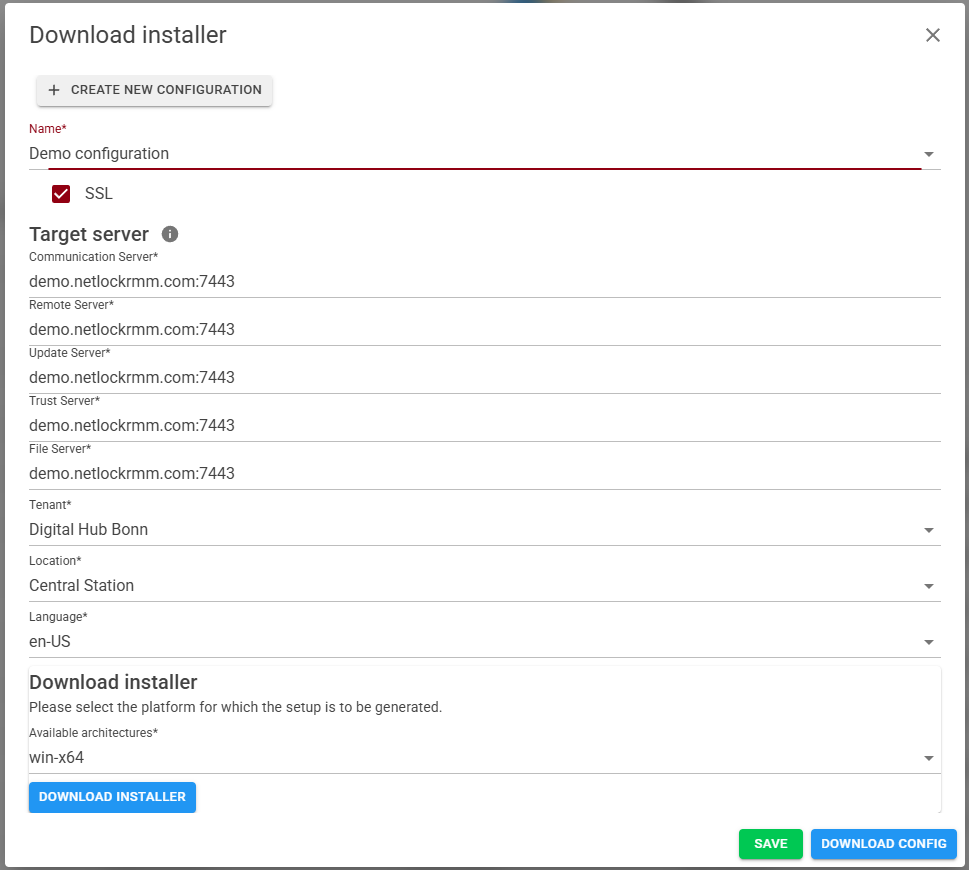
- In the top right corner, click the button with the display and download arrow to open the dialog.
- Create a new configuration.
- Select the newly created configuration.
- Under Communication Server, enter the IP address/hostname and port of your NetLock server (comm). We really recommend hostnames/domains for SSL usage. IP's are NOT reliable and NOT recommended:
- Examples:
netlockrmm.com:7443,demo.netlockrmm.com:7443 - You can specify multiple servers as fallback options by separating them with commas.
- Examples:
- Repeat this process for each of the other NetLock server roles.
- Select the desired tenant.
- Select the desired location.
- Choose the desired language. This setting affects reporting; the language of the machine is irrelevant.
- Save the configuration.
- Download the configuration.
- Obtain the NetLock agent installer through the members portal: https://docs.netlockrmm.com/en/members-portal
- Transfer both the NetLock agent installer and the downloaded
server_config.jsonfile to the target machine.
Windows
- Open Command Prompt (CMD) or PowerShell as an administrator.
- Execute the NetLock agent installer with the following command:
"C:\Users\Administrator\Desktop\installer\NetLock_RMM_Agent_Installer.exe" clean "C:\Users\Administrator\Desktop\server_config.json"Linux & macOS
- Open the terminal.
- Make the installer executable:
sudo chmod +x NetLock_RMM_Agent_Installer3. Execute it:
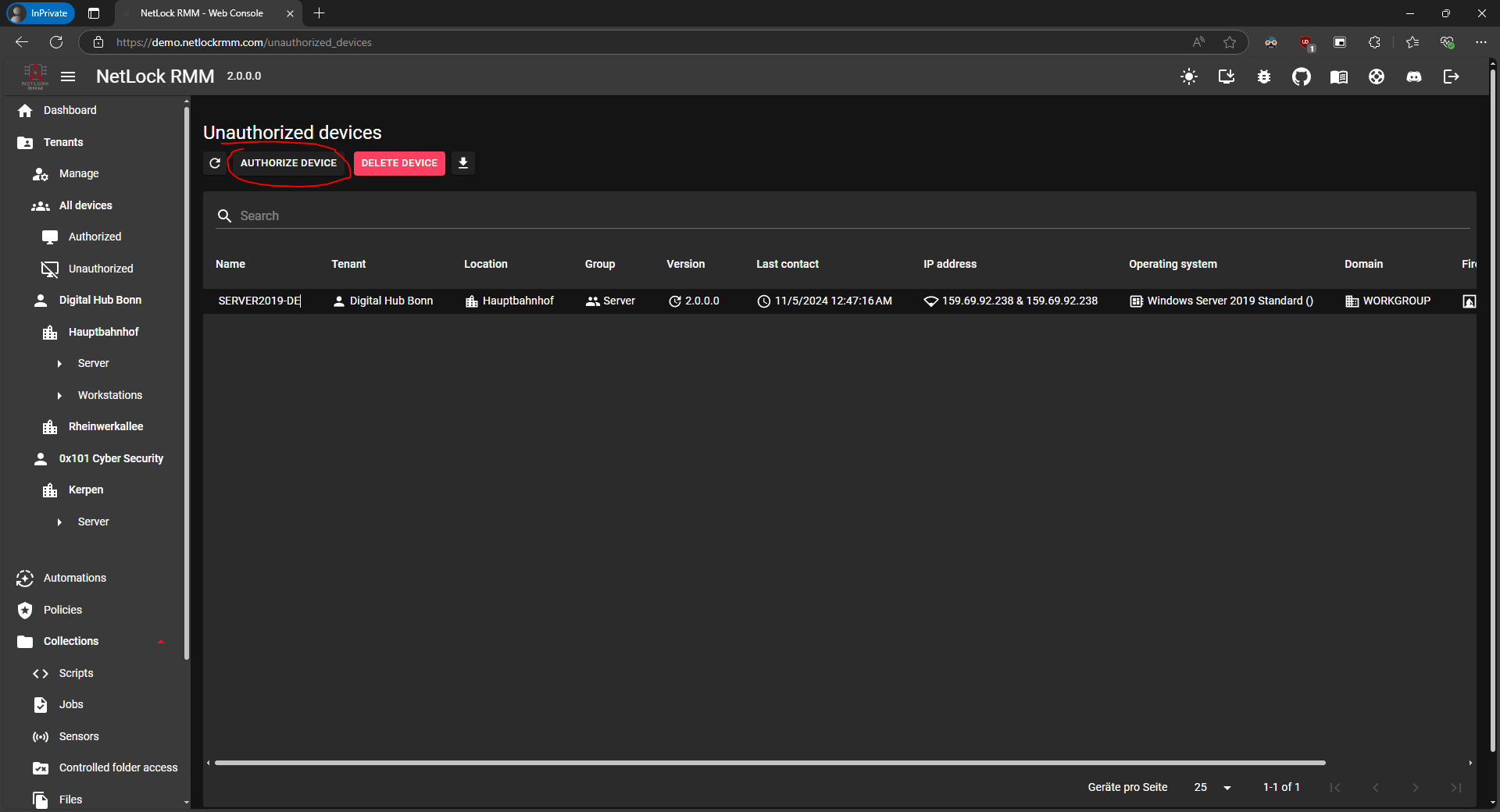
sudo ./NetLock_RMM_Agent_Installer clean path/to/server_config.json4. All set! Once installation is complete, the device should appear shortly in the web console under "Unauthorized." Simply approve it to grant access.
Generating & Using One-Click Installer
If you don't want to use the server_config.json with parameters installation method, you can generate a single installer file.
- Under "Download installer" select the architecture of the target device you want to install on.
- Click on "Download installer" and give it a few seconds to process.
- Move the installer to the target device and execute it as administrator or root for Linux & macOS.
The server_config.json is now embedded into the installer executable.
Windows
You can now run the installer by right-clicking on it and selecting "Run as administrator."
Or with CMD & PowerShell:
- Open Command Prompt (CMD) or PowerShell as an administrator.
- Execute the NetLock agent installer with the following command:
"C:\Users\Administrator\Desktop\installer\NetLock_RMM_Agent_Installer.exe"4. All set! Once installation is complete, the device should appear shortly in the web console under "Unauthorized." Simply approve it to grant access.
Linux & macOS
- Open terminal.
- Make the installer executable:
sudo chmod +x path/to/installer3. Execute it:
sudo ./NetLock_RMM_Agent_Installer4. All set! Once installation is complete, the device should appear shortly in the web console under "Unauthorized." Simply approve it to grant access.
After authorizing the device, it may take up to two minutes for it to start gathering information and updating in the web console. Remote features will become available approximately 3 minutes after initial authorization. To enable remote control (TeamViewer alternative), make sure to reboot the machine, and ensure the user you want to control is logged in.
Parameters
clean- Removes all previous NetLock agent installations
- Recommended for fresh installations
fix- Removes existing NetLock agent installations, excluding the health agent. Updates the old server_config.json with the values provided in the new server_config.json.
- Recommended for updating the server configuration or repairing the agent installation without affecting the agents' authorization.
uninstall- Uninstalls the NetLock RMM Agent completely
--hidden-h- Hides the installer window.
--no-log/--nolog- After installation the temp log files will be cleaned.
--temp <path>/-t <path>- Uses a custom temporary directory instead of the system default
Parameter Details
--temp / -t
Allows you to specify a custom temporary directory. Useful when:
- The default temp directory does not have enough disk space
- Specific security policies require a different directory
- The default temp directory is not writable
Default Temp Directories:
| OS | Default Path |
|---|---|
| Windows | C:\temp |
| Linux | /tmp |
| macOS | /tmp |
The specified directory must exist or the installer must have write permissions to create it.
--hidden / -h
Hides the console window during installation. Only available on Windows. Useful for automated/silent installations.
--no-log / --nolog
Deletes all installer logs after successful installation. Useful for installations where no log files should remain on the system.
Examples
Installation with Custom Temp Directory
./NetLock_RMM_Agent_Installer clean /home/user/server_config.json --temp /mnt/custom/tempNetLock_RMM_Agent_Installer.exe clean C:\configs\server_config.json --temp D:\CustomTempSilent Installation (Windows)
NetLock_RMM_Agent_Installer.exe clean C:\configs\server_config.json --hidden --no-logAll Options Combined
sudo ./NetLock_RMM_Agent_Installer clean /etc/netlock/server_config.json --temp /var/tmp/netlock --no-logNetLock_RMM_Agent_Installer.exe clean C:\configs\server_config.json --temp E:\Temp --hidden --no-logRepair Installation
./NetLock_RMM_Agent_Installer fix /path/to/server_config.jsonSupported Platforms
| Operating System | Architecture |
|---|---|
| Windows | x64, ARM64 |
| Linux | x64, ARM64 |
| macOS | x64, ARM64 |
Administrative privileges required: The installer must be run with Administrator (Windows) or root privileges (Linux/macOS). A network connection to the update and trust servers must be available.
Note: Using the one-click installer always cleans previous installations if no parameter is supplied.
Firewall
The NetLock agent installer retrieves the agent packages and the NetLock agent uninstaller from the backend. Ensure it has access to these resources.
NetLock agents automatically configure the required exceptions in Windows Firewall (no port forwarding, only outgoing) according to your server settings, eliminating the need for manual configuration on Windows.
Once the installation is complete, you should be able to see the device listed under unauthorized devices in the system. It may take a minute for it to appear. Once it does, you will need to authorize the device, after which it will be listed under authorized devices.
PowerShell Installation Script
# NetLock RMM Agent Installation Script
# This script downloads and installs the NetLock RMM Agent
$packageUrl = "replace with your own"

# Check if the service NetLock_RMM_Agent_Comm exists
$serviceName = "NetLock_RMM_Agent_Comm"
$service = Get-Service -Name $serviceName -ErrorAction SilentlyContinue

if ($service) {
    Write-Host "Service '$serviceName' already exists. Installation will not proceed." -ForegroundColor Yellow
    exit 0
}

Write-Host "Service '$serviceName' not found. Proceeding with installation..." -ForegroundColor Green

# Package download URL
$tempFolder = "C:\temp"
$zipFile = "$tempFolder\NetLock_Agent.zip"
$extractFolder = "$tempFolder\NetLock_Agent"

# Create temp folder if it doesn't exist
if (-not (Test-Path -Path $tempFolder)) {
    Write-Host "Creating folder: $tempFolder" -ForegroundColor Cyan
    New-Item -ItemType Directory -Path $tempFolder -Force | Out-Null
}

# Download the ZIP file
Write-Host "Downloading NetLock RMM Agent package..." -ForegroundColor Cyan
try {
    Invoke-WebRequest -Uri $packageUrl -OutFile $zipFile -UseBasicParsing
    Write-Host "Download completed successfully." -ForegroundColor Green
} catch {
    Write-Host "Error downloading package: $_" -ForegroundColor Red
    exit 1
}

# Unzip the package
Write-Host "Extracting package to $extractFolder..." -ForegroundColor Cyan
try {
    # Remove existing extract folder if it exists
    if (Test-Path -Path $extractFolder) {
        Remove-Item -Path $extractFolder -Recurse -Force
    }

    Expand-Archive -Path $zipFile -DestinationPath $extractFolder -Force
    Write-Host "Extraction completed successfully." -ForegroundColor Green
} catch {
    Write-Host "Error extracting package: $_" -ForegroundColor Red
    exit 1
}

# Find and execute the installer
$installerPath = Get-ChildItem -Path $extractFolder -Filter "NetLock_RMM_Agent_Installer.exe" -Recurse | Select-Object -First 1

if ($installerPath) {
    Write-Host "Running installer: $($installerPath.FullName)" -ForegroundColor Cyan
    try {
        Start-Process -FilePath $installerPath.FullName -Wait -NoNewWindow
        Write-Host "Installation completed successfully." -ForegroundColor Green
    } catch {
        Write-Host "Error running installer: $_" -ForegroundColor Red
        exit 1
    }
} else {
    Write-Host "Installer executable 'NetLock_RMM_Agent_Installer.exe' not found in the extracted package." -ForegroundColor Red
    exit 1
}

# Cleanup
Write-Host "Cleaning up temporary files..." -ForegroundColor Cyan
try {
    Remove-Item -Path $zipFile -Force -ErrorAction SilentlyContinue
    Remove-Item -Path $extractFolder -Recurse -Force -ErrorAction SilentlyContinue
    Write-Host "Cleanup completed." -ForegroundColor Green
} catch {
    Write-Host "Warning: Could not clean up temporary files." -ForegroundColor Yellow
}

Write-Host "NetLock RMM Agent installation process completed!" -ForegroundColor Green
Uninstallation
Requirements
Refer to supported operating systems: Supported OS/Distributions
1. Execute it with your desired parameters using CMD or PowerShell.
Parameters
uninstall- Removes all previous NetLock agent installations
Windows
- Move the installer to the target device.
- Open CMD or PowerShell as administrator.
"C:\Users\Administrator\Desktop\uninstaller\NetLock_RMM_Agent_Installer.exe" uninstallLinux & macOS
- Open the terminal.
- Make the installer executable:
sudo chmod +x NetLock_RMM_Agent_Installer3. Execute it:
sudo ./NetLock_RMM_Agent_Installer uninstallUninstallation complete.