How to: Assign a Policy
Learn how to assign policies to tenants, locations, or groups using automations
Overview
Adding a policy to a tenant, location, or group is simple — you just need to use Automations.
Assigning a Policy to a Resource – Step by Step
Navigate to Automations
Open the Automations section from the main menu
Edit or Create an Automation
Edit an existing automation or create a new one by clicking the Add button
Select the Policy Category
Choose 'Policy' from the available automation categories
Define the Condition
Define when a policy should be assigned. The automation system uses weights to determine priority
Select the Value
Choose the value the condition should match (e.g., if the tenant is named 'Default', select 'Default')
Select the Policy
Choose which policy you want to assign to the matched resources
Save the Automation
Save your automation to apply the policy assignment
Understanding Weights
The automation system uses weights to determine which policy takes precedence when a device matches multiple automation conditions.
For a detailed explanation of how weights work, see the Automations documentation.
Example of policy assignment configuration in the Automations interface
Verification
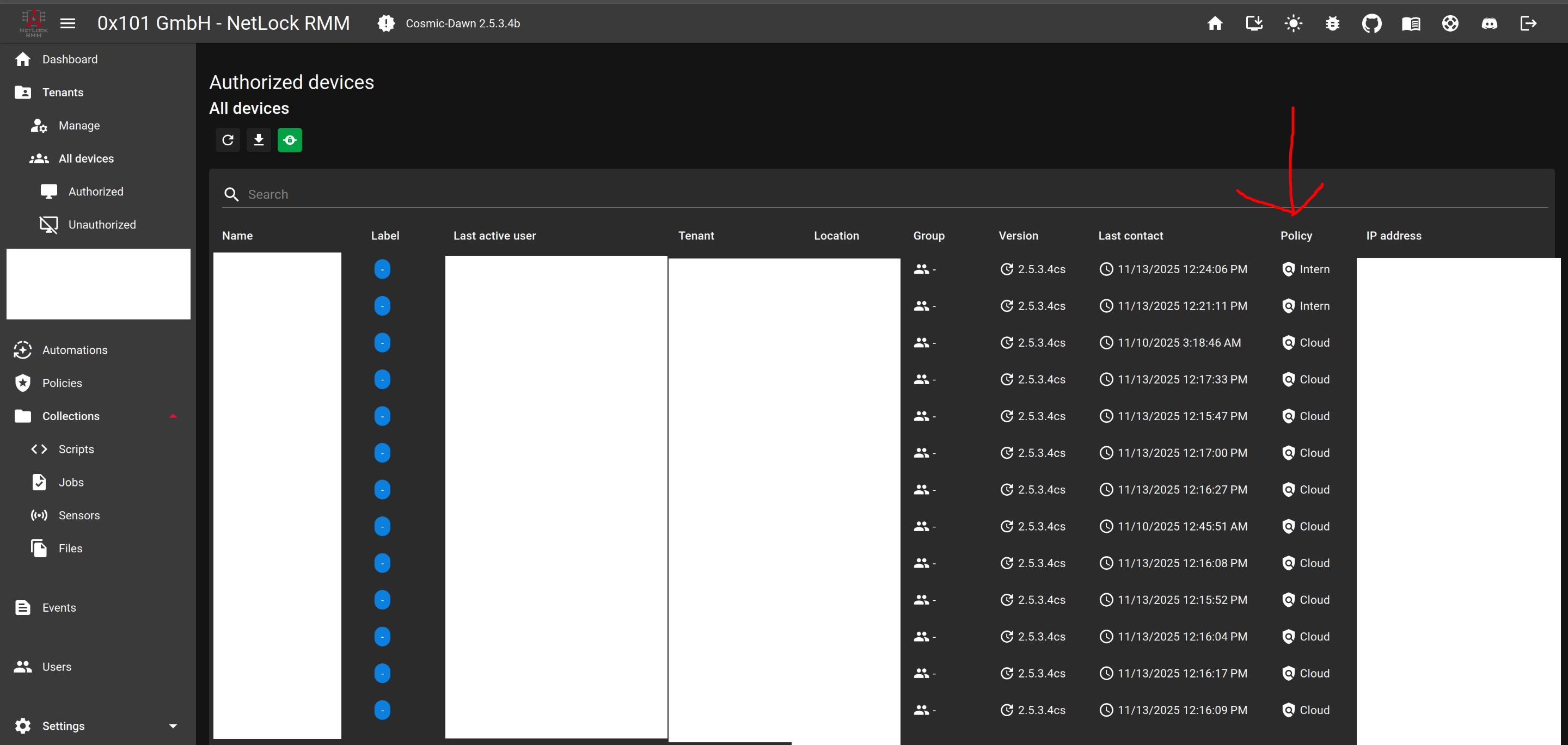
Verify the Assignment
Finally, verify that the policy has been assigned correctly. You can check this in the Device Overview.
Each device will display its currently assigned policy. If the policy doesn't appear as expected, double-check your automation conditions and weights.